Whether you’re submitting a set of scanned documents, compiling photos for a portfolio, or turning a stack of receipts into one shareable file, converting several images into a single PDF is one of the most common everyday tasks. Sending 10 separate JPG files over email is messy, hard to organize, and easy to lose track of. A single PDF solves all of that in seconds.
This guide covers everything you need to know about using a multiple image to PDF converter online — how it works, when to use it, and how to get a clean, properly ordered PDF every time.
Why Convert Multiple Images to PDF
Combining images into one PDF isn’t just about tidiness. There are practical reasons this comes up so often:
- Easier sharing – One PDF file is simpler to attach, upload, or send than a folder full of separate images.
- Consistent viewing order – Images stay in the sequence you set, so the recipient sees them exactly as intended.
- Better for printing – A PDF prints cleanly page by page, unlike a batch of loose image files.
- Professional presentation – Portfolios, reports, and application documents look more organized as a single PDF.
- Universal compatibility – PDFs open the same way on almost any device, without needing an image viewer or specific app.
How to Convert Multiple Images to PDF Online
Converting several images into one PDF file is a quick process on most online tools. Here’s the general step-by-step approach:
Step 1: Open an Online Image to PDF Converter
Choose a tool that supports batch image to PDF conversion — meaning it lets you upload more than one file at once instead of converting images one at a time.
Step 2: Upload Your Images
Select all the images you want to include. Most tools accept common formats like JPG, PNG, BMP, and sometimes GIF or WEBP.
Step 3: Arrange the Order
Before converting, check the order of your images. Most converters let you drag and drop thumbnails to rearrange them, which matters if you’re building something like a report or a scanned multi-page document that needs to read in sequence.
Step 4: Convert and Download
Click convert, and the tool will merge all the images into a single PDF file, ready to download.
Best File Formats to Use Before Converting
Not all image types behave the same way once converted. Here’s a quick reference:
| Format | Best For | Notes |
|---|---|---|
| JPG/JPEG | Photos, scanned color documents | Smaller file size, minor quality loss |
| PNG | Screenshots, graphics with text or transparency | Larger file size, no quality loss |
| BMP | Raw, uncompressed images | Very large file size, rarely needed for PDFs |
| WEBP | Modern web images | Smaller size, good quality, growing support |
If your goal is a smaller final PDF, starting with JPG images generally keeps the file size down compared to PNG or BMP.
Common Use Cases for Image to PDF Conversion
Scanned Documents
Phone camera scans of ID cards, forms, or contracts are usually saved as separate images. Combining them into one PDF makes the document easier to submit and store.
Portfolios and Design Work
Photographers, designers, and artists often compile multiple images into a single PDF to share a complete body of work in one file rather than sending dozens of attachments.
Receipts and Expense Reports
Combining photographed receipts into a single PDF makes expense submissions cleaner and easier for finance teams to review.
Study Notes and Whiteboard Photos
Students and professionals frequently photograph notes or whiteboards during lectures or meetings. Merging these into one PDF keeps everything from a single session in one place instead of scattered across a camera roll.
Tips for a Clean, Well-Organized PDF
- Rename files before uploading so they sort in the correct order automatically (e.g., page-01.jpg, page-02.jpg).
- Check image orientation beforehand — sideways or upside-down images should be rotated before conversion to avoid extra edits later.
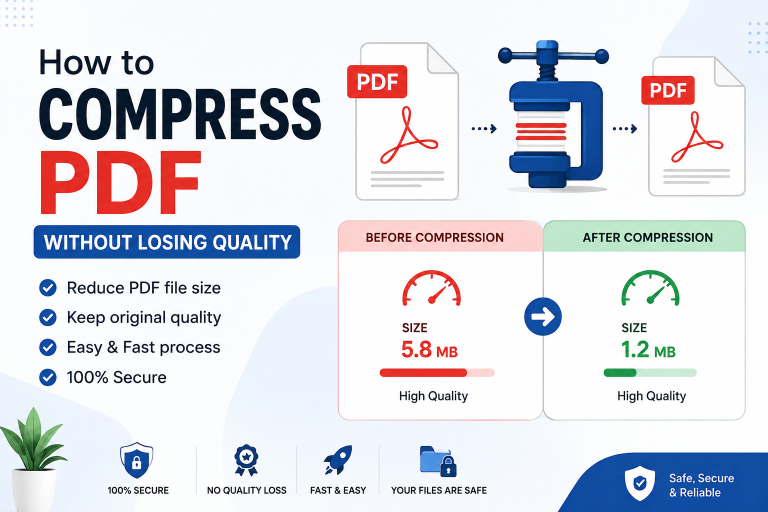
- Compress large images first if you’re combining a big batch, since dozens of high-resolution photos can result in a very large PDF.
- Preview before downloading if the tool offers it, to confirm the page order and layout look correct.
- Keep original images as backup until you’ve confirmed the final PDF looks right.
Things to Check Before Using an Online Converter
- File size limits – Some free tools cap the number of images or total upload size.
- Privacy handling – Look for tools that encrypt uploads and delete files after a short period, especially for personal documents like ID scans.
- Output quality control – A good converter shouldn’t compress your images so aggressively that text or details become unreadable.
- No mandatory sign-up – Many reliable converters let you convert files without creating an account.
Frequently Asked Questions
Can I convert multiple images to one PDF for free?
Yes, most online image to PDF converters let you combine several images into a single PDF at no cost, though some may limit the number of files or file size per use.
Will converting images to PDF reduce their quality?
Not necessarily. A properly built PDF converter preserves image resolution during conversion. Quality loss usually only happens if the tool applies compression on top of conversion.
Can I change the order of images after uploading?
Most tools allow you to drag and drop images to rearrange them before the final PDF is generated, so you don’t need to re-upload if the order isn’t right the first time.
What image formats can be converted to PDF?
Common formats like JPG, JPEG, PNG, and BMP are widely supported. Some tools also support WEBP and GIF, though support can vary by converter.
Is it safe to upload personal photos or scanned documents to an online converter?
It depends on the tool. Look for converters that use encrypted uploads and automatically delete files from their servers after conversion, especially when uploading sensitive documents like ID proofs or contracts.
Can I merge images and existing PDFs together?
Some converters support combining image files with existing PDF pages into one document, though this feature isn’t available on every tool — check before relying on it for mixed-file merging.
Conclusion
Turning multiple images into a single, well-organized PDF is one of the simplest ways to keep documents, scans, and photos easy to share and manage. With the right online converter, the process takes just a few steps — upload your images, arrange them in order, and download a clean PDF file. Whether you’re compiling scanned paperwork, a design portfolio, or a batch of receipts, a properly converted PDF keeps everything in one place, in the right order, and ready to send.