If you’ve ever tried to email a PDF and got hit with an “attachment too large” error, you already know why file size matters. Scanned documents, image-heavy reports, and design files can balloon to tens of megabytes without you realizing it — until you’re stuck trying to shrink it down in a hurry.
The good news is that learning how to reduce PDF file size online takes just a few minutes once you understand what’s making the file heavy and which method actually works for your situation. This guide breaks down the process step by step, along with practical tips to keep your document looking clean after compression.
What Makes a PDF File Large in the First Place
Before reducing a PDF’s size, it helps to know what’s actually taking up space inside it:
- High-resolution images – Scanned pages and photos are usually the biggest reason a PDF becomes oversized.
- Embedded fonts – Full font sets embedded in the file add weight, especially in design-heavy documents.
- Leftover metadata – Edit history, hidden layers, and author details often stay in the file even after visible content is cleaned up.
- Multiple high-quality pages – A 50-page scanned report will naturally be larger than a short text document, regardless of formatting.
Once you know which of these applies to your file, reducing it becomes a lot more targeted and effective.
How to Reduce PDF File Size Online (Step by Step)
Here’s the general process most online PDF size reducers follow:
Step 1: Upload Your PDF File
Open an online PDF compressor and upload the file you want to shrink. Most tools accept files directly from your device, and some also support uploading from cloud storage like Google Drive or Dropbox.
Step 2: Let the Tool Analyze the File
Once uploaded, the tool scans the document to identify what’s contributing to its size — typically images, embedded fonts, and redundant data.
Step 3: Compress the File
Click the compress or reduce option. The tool will downsample images, strip unnecessary embedded data, and optimize the internal structure of the PDF — all without altering the actual text content.
Step 4: Download the Reduced File
Once compression finishes, download the smaller version. It’s good practice to open it and quickly check a few pages, especially ones with images or fine print, before sending it out.
Best Ways to Reduce PDF File Size Without Losing Quality
Not every compression method is equal. Here are the approaches that consistently give the best results:
Downsize Images Instead of Removing Them
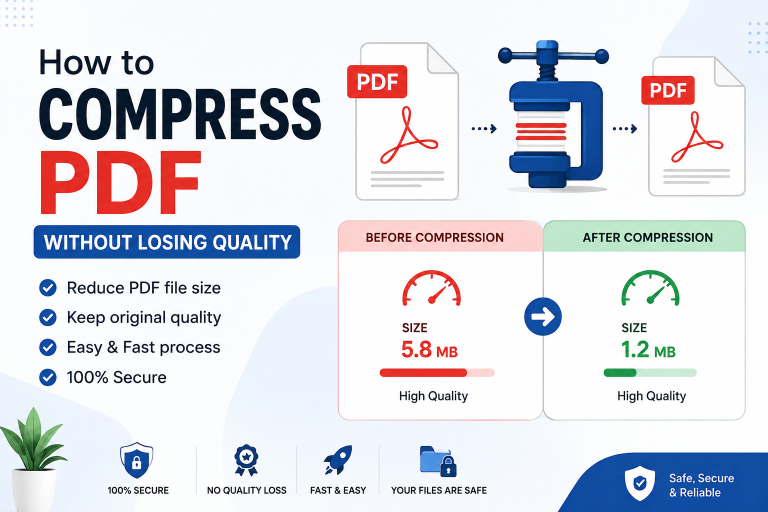
Images are almost always the biggest contributor to file size. Reducing their resolution to around 150–200 DPI is usually more than enough for screen viewing and standard printing, without a noticeable drop in visual quality.
Convert Scanned Pages to Searchable Text
If your PDF is a scanned document, running it through OCR (optical character recognition) and converting it to searchable text can shrink the file significantly, since text data takes up far less space than a flat image of a page.
Remove Unused Elements
Clean out anything not needed in the final version — hidden layers, unused embedded fonts, old comments, and outdated metadata all add unnecessary bulk.
Avoid Repeated Compression
Compressing an already-compressed PDF repeatedly can degrade image quality with each pass. Always compress from the original, high-quality file rather than a previously reduced version.
Choosing the Right Online Tool
Not all online PDF compressors handle files the same way. When picking one, keep these points in mind:
- Upload limits – Free tools often cap file size or the number of files per session.
- Privacy and security – Look for tools that encrypt files during upload and delete them from their servers after a short period, especially for sensitive documents.
- Output quality – A reliable tool should reduce size without making text blurry or images unreadable.
- No unnecessary sign-up – Many trustworthy tools let you compress files without creating an account.
If you also need to combine several scanned pages before reducing the file, a multiple image to PDF converter online tool works well as a first step, followed by compression once everything is merged into a single document.
For a deeper look at maintaining image and text quality during compression, this guide on how to compress PDF without losing quality covers the technical side in more detail.
When You Might Need to Reduce PDF Size
For Email Attachments
Most email providers cap attachments between 10–25 MB. Reducing your PDF ensures it sends without bouncing back or requiring a cloud link.
For Online Form Uploads
Government portals, job applications, and admission forms often set strict limits — sometimes under 1 MB. Higher compression settings work well here since these files are usually viewed on screen only.
For Faster Sharing and Storage
Smaller files upload faster, take up less cloud storage, and are easier to share over slower internet connections.
Common Mistakes to Avoid
- Using maximum compression by default – This can make text-heavy pages harder to read. Match the compression level to your actual need.
- Skipping the preview step – Always check a few pages after compression, especially ones with charts, fine print, or photos.
- Uploading sensitive files to unreliable tools – Confirm a tool’s privacy policy before uploading anything containing personal or financial information.
- Compressing multiple times – Each additional round of compression can reduce image quality further than necessary.
Frequently Asked Questions
How can I reduce the MB size of a PDF file?
The most effective way is to compress the images inside the PDF, since they’re usually the biggest contributor to file size. Reducing image resolution to around 150–200 DPI, removing unused embedded fonts, and clearing leftover metadata can bring a file down from tens of megabytes to just a few, without noticeably affecting quality.
How can I reduce the size of my PDF file online?
Upload the file to an online PDF compressor, let it analyze the document, and run the compression process. The tool will downsample images and strip unnecessary data automatically, and you can download the smaller file within seconds — no software installation needed.
How do I reduce my PDF file size online for free?
Most online PDF compressors offer free compression for individual files, usually with a limit on file size or number of files per session. Simply upload your PDF, apply compression, and download the result — no payment or account is typically required for basic use.
Can ChatGPT compress a PDF?
ChatGPT itself cannot directly compress or reduce the file size of a PDF, since it doesn’t process binary file formats that way. However, it can explain compression techniques, walk you through the manual steps, or help you write a script for compression — the actual file reduction still needs to be done through a dedicated PDF compression tool.
How to decrease PDF size to 10MB?
Start by identifying which pages contain large images, since these are the main contributors to size. Run the file through an online compressor using medium to high compression, and check the resulting size. If it’s still above 10 MB, consider splitting the document or converting scanned pages into searchable text, which significantly reduces size compared to flat image pages.
How to reduce PDF size in AI?
AI-based PDF tools typically work the same way as standard compressors, but use smarter algorithms to identify which parts of an image or page can be reduced with minimal visible quality loss. To use one, upload your PDF to an AI-powered compression tool, let it analyze image density and content, and download the optimized file — the underlying goal is the same as any compressor: removing redundant data while preserving what’s visually important.
Is it safe to reduce PDF file size online?
It depends on the tool. Reputable services use encrypted file transfers and automatically delete uploaded files after a short period. Checking a tool’s privacy policy before uploading sensitive documents is always a good practice.
Will reducing file size affect the quality of my PDF?
Text usually stays sharp since it’s stored as vector data, not pixels, based on how the PDF format itself is structured. Image quality depends on the compression level chosen — moderate compression typically preserves visual quality well.
Can I reduce the size of a password-protected PDF?
Most online tools require the password to be removed first, after which the file can be compressed and protection can be reapplied.
Conclusion
Reducing PDF file size online doesn’t have to be complicated or come at the cost of quality. By understanding what’s making your file large — usually images, embedded data, or leftover metadata — and applying the right compression approach, you can consistently get smaller files that still look sharp. Whether you’re preparing a document for email, an online form, or simple storage, following a clear process and choosing a reliable tool makes the entire task quick and stress-free.