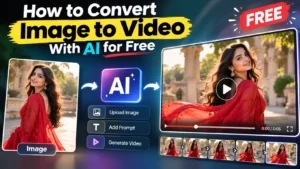
Creating a video from a single image no longer requires advanced video-editing skills. Today, you can create an image from a text prompt, animate an existing photograph, add camera movement, and generate a complete video using AI-powered tools.
This guide explains how to convert image to video with AI for free, how to create an image with AI, which image-to-video tools you can use, which options are free or paid, and how to write prompts that produce better results. The basic process is simple: create or choose an image → upload it → describe the movement → generate the video → edit and export it. Pasted markdown
What Is Image to Video AI?
Image to video AI is technology that takes a still image and generates a moving video from it.
Instead of manually animating every frame, you provide an image and tell the generator what should happen.
For example, if you have a fashion photograph, you could use a prompt like:
“The model slowly turns toward the camera while her dress moves naturally in the wind. Smooth cinematic camera movement.”
The generator then creates new frames to produce the appearance of movement.
Modern video models can also understand reference images, camera instructions, objects and movement. Google’s Veo 3.1, for example, supports image-to-video generation, reference images, camera controls, first-and-last-frame workflows and other video controls.
How to Create an Image With AI
Before you learn how to convert image to video with AI for free, you need a good starting image.
You can either:
- Use your own photograph
- Create an image with an AI image generator
- Edit an existing image
- Create multiple images for different video scenes
Step 1: Write an Image Prompt
An image prompt tells the generator what you want to see.
A useful prompt can describe:
- Subject
- Clothing or product
- Background
- Lighting
- Camera angle
- Style
- Mood
- Composition
For example:
“A realistic Indian fashion model wearing an elegant red saree, standing in a luxury boutique, soft cinematic lighting, detailed fabric texture, natural face, professional fashion photography, vertical 9:16 composition.”
Step 2: Select the Best Image
For image-to-video generation, choose an image where the main subject is clear.
Avoid extremely blurry images, complicated backgrounds or images where important parts of the subject are hidden.
A clean source image generally gives the video generator a better visual reference.
How to Convert Image to Video With AI for Free
Once your image is ready, the process is straightforward.
Step 1: Choose an Image-to-Video Tool
Select a platform that supports image-to-video generation.
Some platforms provide free credits or free daily usage, while others require a subscription for their more advanced models.
Step 2: Upload Your Image
Upload the image you want to animate.
Step 3: Write a Motion Prompt
Tell the tool exactly what should move.
For example:
“The woman slowly turns toward the camera. Her hair moves gently in the wind while the camera slowly pushes forward. Keep her face, clothing and background consistent.”
Step 4: Generate the Video
The tool processes the image and prompt and creates a short video.
Step 5: Review and Regenerate
Don’t worry if the first result isn’t perfect.
You may see:
- Face changes
- Distorted hands
- Unnatural movement
- Clothing changing shape
- Background distortion
- Excessive camera movement
Change the prompt and generate another version. This workflow—upload, describe movement, generate and refine—is the basic image-to-video process.
Best AI Tools for Image to Video
There isn’t one tool that is perfect for every project. Some are easier for beginners, some offer cinematic controls, and others are better suited to frequent content creation.
1. Google Gemini + Veo
Type: Paid for video generation through eligible Google AI plans
Google’s Gemini can provide access to Veo, Google’s video-generation technology. Google currently lists Veo 3.1 as its latest video model, with image-to-video capabilities as well as audio and other creative controls.
Google AI Pro is a paid subscription, and plan availability and benefits can vary by region. Google’s current plan information shows video generation as part of its paid AI experience.
Best for: People already using the Gemini ecosystem and creators who want high-quality generated video.
2. Google Flow
Type: Free tier + Paid plans
Google Flow is Google’s dedicated creative studio for generating and editing images and videos. It supports Text to Video, Frames to Video, Ingredients to Video, Video Extension and video-to-video editing.
An important point: Flow is not completely paid. Google currently offers a free tier with daily credits, while Google AI Plus, Pro and Ultra plans provide additional credits and features.
Best for: Cinematic scenes, multi-shot projects and creators who want more control than a simple prompt
3. Google Vids
Type: Eligible Google Workspace subscription
Google Vids is designed more around creating and editing workplace videos. Its AI features can generate video clips from prompts, reference images and other ingredients, and it can also animate a static image.
It is therefore different from Flow: Vids focuses heavily on video creation, editing, collaboration and workplace presentations.
Best for: Business presentations, explainers, training videos and workplace content.
4. Runway
Type: Free plan + Paid plans
Runway provides image-to-video capabilities and multiple generative video models. Its current Free plan includes a one-time credit allocation, while paid plans provide recurring monthly credits.
Runway’s Gen-4.5 supports image-to-video, with the model available on Standard and higher plans.
Best for: Creators who want more control over professional video generation.
5. Kling AI
Type: Free access/credits + Paid plans
Kling AI is another popular option for generating videos from images and text. Availability, credits and features can vary by account and plan, so users should check the current pricing and generation limits before relying on it for regular production.
Best for: Image animation, cinematic motion and creative short videos.
6. Luma Dream Machine
Type: Free limited access + Paid plans
Luma’s Dream Machine supports image-to-video generation. Its current plans include limited free usage, while paid plans provide greater generation capacity and additional capabilities. Luma’s documentation notes that free usage is limited and can include watermarks and personal-use restrictions.
Best for: Creative experiments, cinematic shots and image animation.
7. Pika
Type: Free tier + Paid plans
Pika offers a free option as well as paid subscription tiers. Its current pricing page lists a Free plan with limited access, while paid plans provide monthly credits and additional capabilities. Pika
Best for: Short-form social media videos and creative image animations.
| Tool | Free Option | Paid Option | Image to Video |
|---|---|---|---|
| Gemini + Veo | Limited/plan dependent | Yes | Yes |
| Google Flow | Yes | Yes | Yes |
| Google Vids | Workspace dependent | Yes | Yes |
| Runway | Yes, limited | Yes | Yes |
| Kling AI | Limited/free access | Yes | Yes |
| Luma Dream Machine | Limited | Yes | Yes |
| Pika | Yes, limited | Yes | Yes |
How to Write a Good Image-to-Video Prompt
A good prompt doesn’t need to be extremely long.
A simple formula is:
Subject + Movement + Camera + Environment + Style
For example:
“A woman wearing a flowing red saree slowly walks toward the camera, the fabric moves naturally in the breeze, the camera smoothly tracks backward, realistic movement, cinematic lighting.”
Use Specific Movement
Instead of:
“Make this image move.”
Try:
“The camera slowly zooms toward the product while the background remains stable.”
You can also describe camera movements such as:
- Slow zoom in
- Slow zoom out
- Pan left
- Pan right
- Camera tracking
- Dolly forward
- Static camera
Simple, controlled movements often produce more predictable results. Pasted markdown
How to Create an AI Video From One Image
You can create a short video from just one image.
Complete Workflow
1. Create or select an image
↓
2. Upload the image
↓
3. Write a movement prompt
↓
4. Select video settings
↓
5. Generate the clip
↓
6. Check the result
↓
7. Regenerate if necessary
↓
8. Edit and export
This workflow can be used for social media posts, product promotion, fashion content, advertisements and storytelling. Pasted markdown
What Can You Create With Image to Video AI?
Social Media Reels
Turn a normal photograph into an engaging short clip for Instagram, Facebook or YouTube Shorts.
Product Videos
A product photograph can be animated with subtle camera movement, lighting changes or environmental motion.
Fashion Videos
Fashion images can be turned into promotional clips by adding natural fabric movement and controlled camera motion.
Storytelling Videos
You can generate several images for different scenes and then animate each one to create a complete story.
Marketing Videos
Businesses can use animated images for advertisements, promotional content and product presentations.
Free vs Paid AI Video Tools: Which Should You Choose?
If you are experimenting or creating videos occasionally, a free plan can be enough.
Choose a free option when:
- You are learning
- You want to test prompts
- You only need a few short clips
- You don’t mind limited credits
Consider a paid plan when:
- You create videos regularly
- You need more generations
- You want higher resolutions
- You need advanced models
- You are producing commercial content
The important thing is not simply whether a tool is free or paid. Check credits, watermark rules, commercial-use rights, resolution, video duration and available models before selecting one.
Limitations of Image-to-Video AI
Even the latest generators can produce unexpected results.
Common problems include:
- Face inconsistencies
- Distorted hands
- Unnatural body movement
- Objects changing shape
- Flickering details
- Background movement
- Incorrect camera movement
- Limited free credits
The final result depends on the source image, prompt, selected model and generation settings.
Frequently Asked Questions
Can I convert photos to videos using AI for free?
Yes. Several platforms offer free credits or limited free access. However, free plans may have restrictions on generation limits, resolution, duration, watermarks or commercial use.
How do I create an AI video from one image?
Upload your image to an image-to-video generator, describe the movement and camera action, generate the clip and regenerate it if the result needs improvement.
How do I animate a photo for free with AI?
Choose a platform with a free tier, upload your photo and provide a simple motion prompt. The available free credits depend on the platform.
Can I turn a picture into a video online for free?
Yes. Online tools such as Google Flow and other image-to-video platforms can turn still images into short video clips, although their free limits differ. Google Flow currently offers a free tier with daily credits.
Is Gemini video generation free?
Gemini video generation through Veo is associated with eligible Google AI plans, so users should not assume that the full video-generation feature is unlimited or free. Google’s current AI plan information lists video generation as a paid-plan capability.
Is Google Flow free?
Yes. Google currently offers Flow with a free tier that includes daily credits. Paid Google AI plans provide additional monthly credits and other benefits.
Which is better for image-to-video: free or paid tools?
It depends on your requirements. Free tools are good for testing and occasional content, while paid plans generally make more sense for regular production and higher usage.
Final Thoughts
Learning how to convert image to video with AI for free is much easier when you understand the complete workflow. You can first create an image with an image generator, improve the image if necessary, upload it to an image-to-video platform, describe the movement and generate your clip.